
Local SEO blog
My Wispr Flow Review After Two Months of Talking Instead of Typing
September 6, 2026
Last verified September 2026
I have used Wispr Flow for a couple of months, and I keep coming back to it for one very specific reason.
I hate mobile typing.
My thumbs and I have an uneasy working relationship. I can type on my phone when I need to, but it feels slow, cramped, and slightly more annoying than the task deserves. Flow gives me another option. I can talk into my phone, let it turn my speech into text, and then keep moving.
I also use it on desktop. I switch between typing and talking based on the task, my mood, and how much writing my brain is willing to produce with my fingers.
So far, Wispr Flow does a good job.
I may receive a benefit if you sign up through my Wispr Flow referral link. This is an affiliate referral link, and my opinions are based on my actual use of the app over the past couple of months.
What Wispr Flow does
Wispr Flow is a voice-to-text tool that turns spoken words into text inside apps and websites. According to Wispr Flow’s official features page, it can clean up filler words, add punctuation, format lists, and understand spoken corrections.
The official documentation describes a simple workflow. You start dictation, speak naturally, and Flow transcribes the finished text into the active app.
That last part matters to me. I do not want to babysit every word as it appears. I want to say what I mean, get usable text, and fix anything that needs my attention.
Flow also has tools for dictionaries, snippets, styles, transforms, scratchpad notes, insights, and notetaking. The exact features available can depend on the device, plan, and current app version.
How I use Wispr Flow
I use Flow on my phone a lot because mobile typing makes me want to throw the phone into a lake.
I use it for quick messages, notes, search queries, rough ideas, and longer chunks of writing when my thoughts are moving faster than my thumbs. Speaking feels easier for some tasks, especially when I already know what I want to say and need to get it out of my head.
I also use it on desktop when I am drafting or revising content. My work includes SEO writing, client communication, research notes, and a frankly excessive number of browser tabs. Flow is useful when I want to create a rough draft without stopping every few seconds to correct a typo.
The app’s official site says it works in text fields across apps and websites. That matches the basic use case I care about. I can talk into the device, and Flow gives me text I can work with.
I still type plenty. Typing works better for short edits, private situations, and moments when I want to choose each word slowly. Flow works better when I need to capture a thought quickly.
The transcription cleanup is the useful part
Basic dictation has been around forever. The part that makes Flow more useful is the cleanup.
Normal speech is messy. I restart sentences. I add words. I change direction halfway through a thought. I say “actually” and then rewrite the sentence out loud.
Flow generally turns that kind of speech into cleaner text.
The official features page says Flow can remove filler words, add punctuation, format numbered lists, and understand corrections while you speak. I have found that general approach helpful because I can speak naturally instead of performing a strange robotic version of dictation.
The result still deserves a review before I send or publish it. I would never hand any transcription tool the keys to my entire professional life and walk away. That is how you end up sending a client a sentence that sounds like it was assembled by a haunted fax machine.
Flow gives me a usable starting point, though. That saves time and reduces the friction of getting words onto a screen.
What I like about Wispr Flow
It gives me a better option than mobile typing
This is the biggest benefit for me.
Phone keyboards are fine for short replies. Longer writing feels like trying to do SEO keyword research with oven mitts on.
Talking is often faster and more comfortable. I can dictate a thought, glance over the result, and make a few edits.
It handles normal speech well
I do not have to speak like a customer service recording.
I can pause, restart, correct myself, and keep going. Flow usually turns that into text that sounds much cleaner than the raw speech.
It includes tools for common dictation problems
The app includes tools that address the annoying parts of speech-to-text. The official features include a personal dictionary, snippets, and writing styles. The app navigation shown in my account also includes transforms and scratchpad tools.
A dictionary can help with names, industry terms, and words that a general transcription system might mangle. Snippets can save repeated phrases. Styles can help shape the tone of text on supported devices.
I have not used every feature heavily yet. I like having the tools available when a normal dictation workflow needs more control.
It shows me how I am using it
Flow’s Insights area gives account-level usage information. That is a fun addition for a basement nerd who enjoys dashboards more than a normal person probably should.
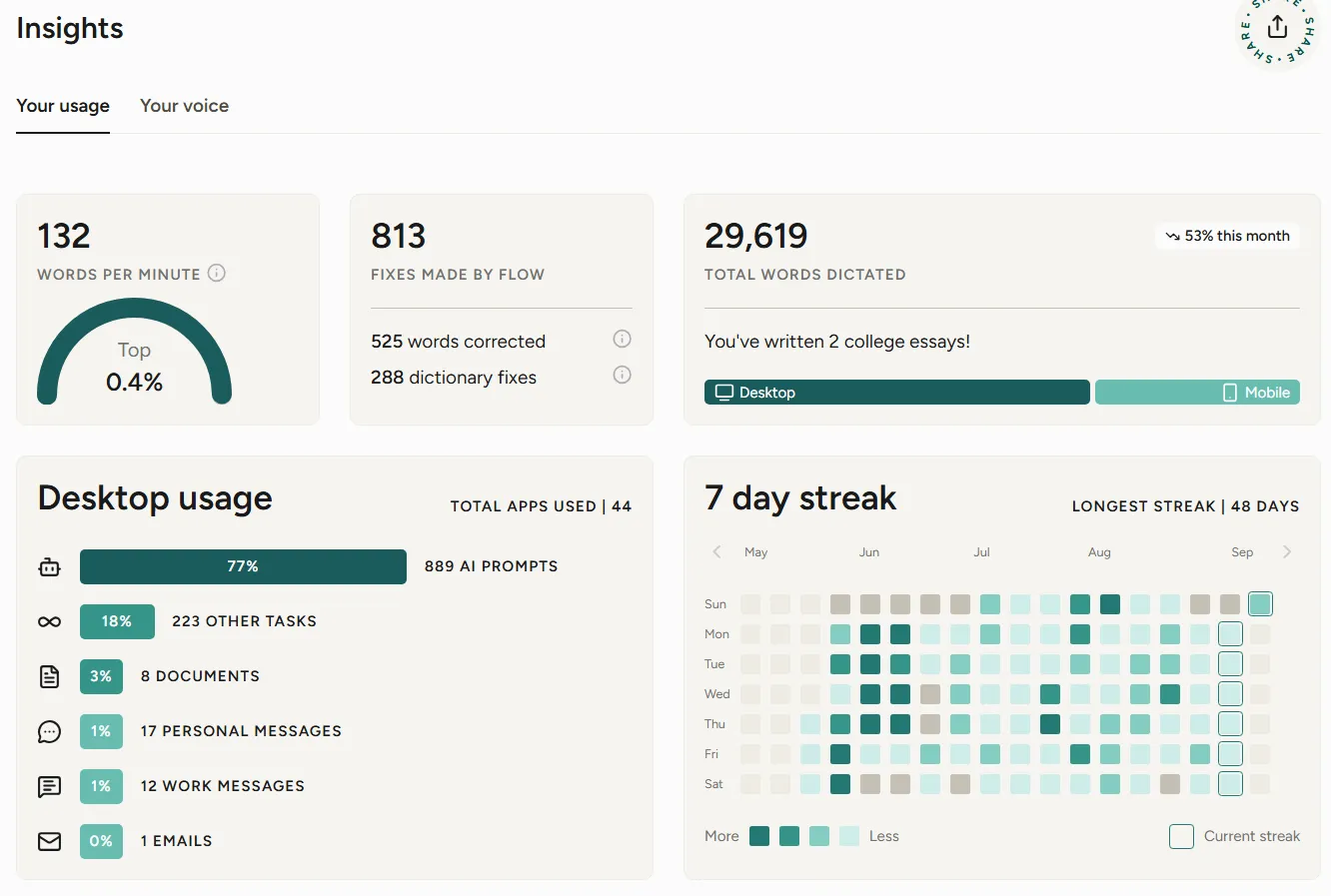
The displayed account metrics in my screenshot show 132 words per minute, a Top 0.4% label, 813 fixes made, 29,619 total words dictated, 44 desktop apps used, 889 AI prompts, 223 other tasks, 8 documents, 17 personal messages, 12 work messages, one email, a current seven-day streak, and a longest streak of 48 days. The screenshot also shows 53% this month for total words dictated.
Those numbers describe what Flow displayed for my account at the time of the screenshot. They are not a scientific productivity study, and I would not use them to make a grand claim about how much time I save.
They do show that I use the tool across different kinds of work. The 29,619 dictated words are enough to prove this was more than a five-minute novelty experiment.
Flow’s generated voice insights
The Insights section also includes a “Your voice” view.
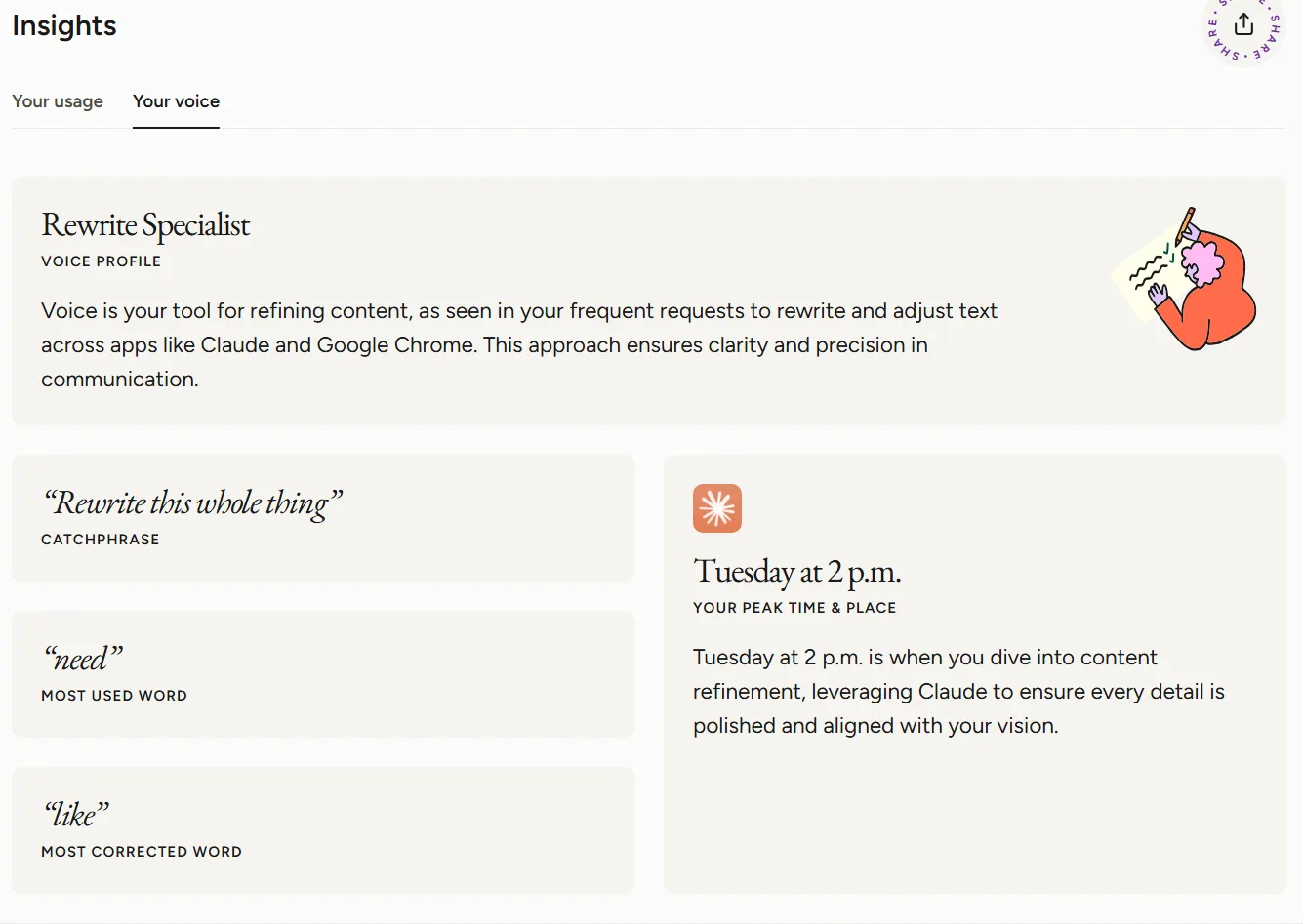
Flow generated the voice profile name “Rewrite Specialist,” the catchphrase “Rewrite this whole thing,” the most used word “need,” the most corrected word “like,” and a Tuesday at 2 p.m. peak time and place.
I read these as playful usage observations from Flow. They are generated insights about how I use the app. They are not scientific personality findings or a serious measurement of my productivity.
The “Rewrite Specialist” label is pretty accurate for my workflow, though. I spend a lot of time revising wording, especially in content and client communication. The “like” correction also feels believable because spoken language has a habit of sneaking little filler words into the room.
What annoys me
My biggest annoyance is accidental button presses.
Sometimes I hit something by accident while I am moving around the app or using my phone. It is a small problem, but it can interrupt the flow of what I am doing.
That is the main recurring annoyance I have found so far. The app has enough features for normal speech-to-text frustrations that I have not run into a long list of serious problems.
I still review everything before using it. Names, technical terms, punctuation, and context deserve a human check. Flow helps me produce text faster, and I remain responsible for the final text.
The word allowance shown in my account
My account screenshot shows a 2,000-word weekly allowance with 204 words remaining and an option to upgrade to unlimited access.
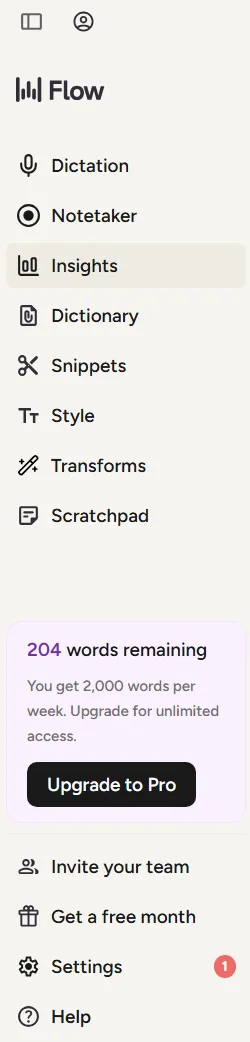
This screenshot reflects the account state shown at that time. Current limits, plans, and upgrade options may change, so check Wispr Flow directly for current details.
I am leaving pricing out of this review because I did not verify a current price from the official source for this draft. The allowance shown in my account is useful context for anyone trying the tool, especially if you plan to dictate a lot.
Who should use Wispr Flow
Remote workers should consider Wispr Flow.
If you work from home, have a private office, or spend a lot of time alone with your devices, talking into your computer or phone is easy enough. It can help with messages, notes, drafts, and rough ideas.
Writers, marketers, freelancers, customer support workers, and people who hate mobile keyboards may get the most obvious benefit.
It also makes sense for people who think more clearly out loud. Some ideas show up faster when I talk through them instead of trying to type the perfect first sentence.
Who should skip it
People who are always around other people may want to skip it.
Using Flow means talking into your devices a lot. That can be awkward in an office, a crowded house, a shared workspace, or anywhere people will keep asking who you are talking to.
You can use it quietly in some situations, but the core experience still involves speaking. A keyboard may be the better tool when privacy, silence, or social normalcy matters.
My verdict after two months
Wispr Flow has earned a regular place in my workflow.
I use it because it makes some writing tasks easier, especially on my phone. The transcription and cleanup are good enough to produce text I can actually use. I can switch between typing and talking instead of forcing every task through the tiny mobile keyboard I already hate.
The accidental button presses are annoying, but they have not outweighed the usefulness.
My recommendation is simple. Remote workers should give Wispr Flow a real trial. People who spend most of their day around other people should think carefully before signing up, because talking into your devices becomes part of the workflow.
For more tool reviews and practical AI workflow notes, browse my AI and SEO articles. If your website needs a closer look, I also offer a free SEO audit.